How to use AI HR Skills in Microsoft Copilot
Microsoft Copilot can take a SKILL.md file as an upload, so you can add a library skill such as the Feedback Anonymizer to Copilot Chat in a few clicks.
AI HR Skills Editorial TeamMicrosoft documents a way to add a skill to Copilot Chat. Download the skill’s SKILL.md file, choose Upload skill in the Agents area, review the name and description, and save. Then select the skill in a chat and give it a task. This guide walks through it with our Feedback Anonymizer.
A skill is a plain-text file of instructions, named SKILL.md, that tells an AI assistant how to do one job the same way each time. Some skills also come with reference files. According to Microsoft’s documentation, this route needs a specific Copilot plan, so check that first.
Key takeaways
- Microsoft’s documentation says Copilot Chat accepts a skill as a standalone SKILL.md file or a ZIP with SKILL.md at its root.
- Skills are available only with Microsoft Copilot (Premium). Copilot Chat (Basic) users don’t have access.
- Our Feedback Anonymizer is longer than Microsoft’s recommended 20,000 characters, so expect to test it before relying on it.
- Use made-up text for your first test, and remember that what you type is processed and stored by your organization’s Copilot.
What you need
- The right plan. Microsoft’s support page says skills are available only with Microsoft Copilot (Premium). It adds that you need permission to open Agents & Skills. Microsoft’s pages don’t explain how that permission is granted, so ask your IT admin.
- An organization that allows skills. Microsoft’s Copilot Chat skills page says skills aren’t supported in Copilot Chat in tenants that use Microsoft Purview Information Barriers. If your organization uses them, ask your admin.
- The skill file. The Feedback Anonymizer page has a Download the SKILL.md link.
Without Premium, this route isn’t open to you. The other routes Microsoft documents don’t fit this skill either. Agent Builder’s instructions box holds 8,000 characters, and the Feedback Anonymizer is about 23,900 characters. Trimming it would change a skill whose rules were written to work together, so we don’t suggest it. The Claude and ChatGPT guides cover other assistants.
A note on file length
Microsoft’s Copilot Chat page recommends keeping SKILL.md under 20,000 characters and moving detail into supporting files. It calls this an authoring recommendation for Chat. For skills attached to an agent, Microsoft’s agent documentation says the limit is a requirement.
The Feedback Anonymizer’s SKILL.md is about 23,900 characters. Microsoft doesn’t say what Copilot Chat does with a longer personal upload. We have not tested it in Copilot, and the skill’s listing says it was tested on Claude only. Treat the test in the “Check it worked” section as essential.
Import the Feedback Anonymizer
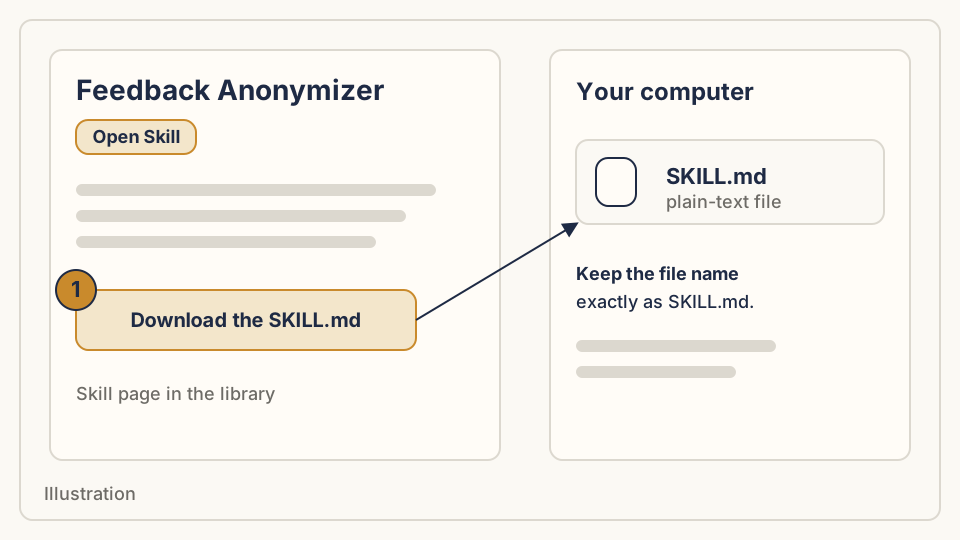
Step 1: Download the skill file
Open the skill’s page and select Download the SKILL.md. Keep the file name as it is. Microsoft says each skill needs a file named SKILL.md.
Step 2: Choose Upload skill
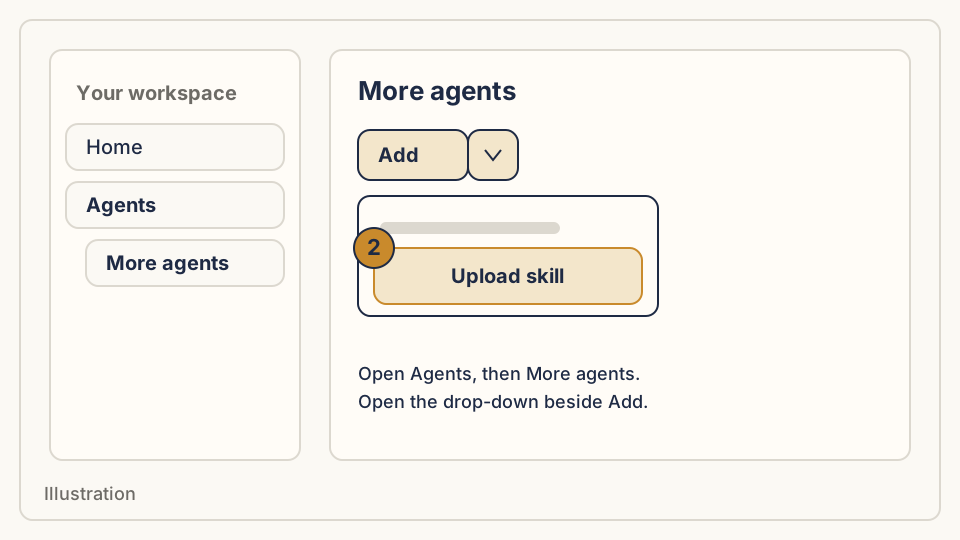
In Copilot Chat, open Agents, then More agents. Open the drop-down beside Add and choose Upload skill. Microsoft’s two pages describe the first clicks a little differently: one says to open Home and right-click Agents, the other says to select Agents. If your screen differs, follow the labels you see.
Step 3: Upload, review and save
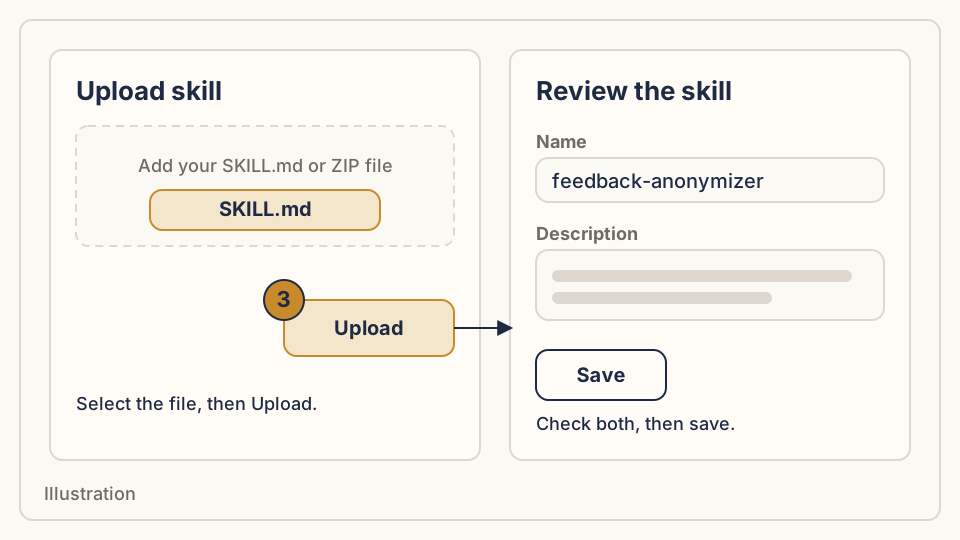
Add the SKILL.md file and select Upload. Microsoft says to review the skill’s name and description, then save it. After saving, reopen the skill to check its instructions and included files.
The skill’s own header names it feedback-anonymizer, so expect to see that name. Don’t edit the instructions in the skill builder. Edits change how the skill behaves.
Step 4: Select the skill
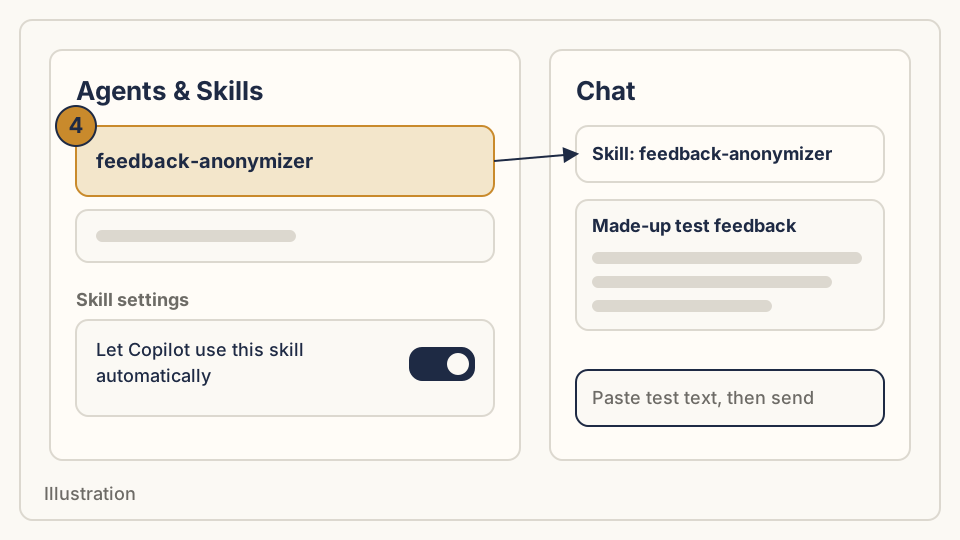
Open Agents & Skills. Microsoft says you can select a skill there and then enter your task. That is the surest way to use a specific skill. The page also describes a setting, Let Copilot use this skill automatically. When it’s on, Copilot can pick the skill from a normal conversation. Turn it off if you only want it to run when you choose it.
Check it worked
Select the skill, then paste this made-up comment. Never use a real employee’s words for a test.
Q1: I've been on the Eastside support team for two years and the Monday rota is a shambles tbh. Sam keeps changing it the night before!! It would be great if we got it by Friday.According to the skill’s own instructions, a good result has four parts:
- A short points list headed “What you said, in short”.
- A plain, neutral rewrite, with Sam shown as a placeholder such as [Name 1].
- A numbered list of details that could identify the writer, here likely the office, team, tenure and the name, each with keep, generalize or remove options.
- A closing note saying the rewrite can’t guarantee anonymity.
If Copilot answers in its own style and skips these parts, the skill probably wasn’t used. Select it explicitly and try again. The skill also limits each use to 5 answers or 500 words, so a longer paste should be refused with advice on how to split it. A skill can still produce a poor result, so read the output before anyone relies on it.
If it doesn’t work
- You can’t find Upload skill or Agents & Skills. Microsoft says skills need Microsoft Copilot (Premium) and permission to open Agents & Skills. Ask your admin.
- Your organization uses Information Barriers. Microsoft says skills aren’t supported in Copilot Chat in those tenants.
- The skill is missing or ignored after upload. Microsoft’s Copilot Studio troubleshooting page lists invalid YAML front matter, a missing name or description, and a SKILL.md saved in an encoding other than UTF-8 as reasons a skill is skipped. That page covers Copilot Studio, not Chat. Don’t re-save the file in a word processor.
- You uploaded a ZIP. Microsoft says the ZIP must have SKILL.md at its root, with no extra enclosing folder. For skills added to an agent in Agent Builder, it says to upload the complete ZIP, not SKILL.md alone.
Keeping people’s data safe
Microsoft’s privacy documentation says prompts, responses and data accessed through Microsoft Graph aren’t used to train its foundation models. It also says Copilot stores your prompts and responses as activity history. Admins can search that history and set retention rules with Microsoft Purview, and users can delete their own history.
For HR, the consequence is practical. If your employer runs Copilot, people in your organization with the right admin access may be able to find what employees paste into it. The Feedback Anonymizer is built for employees preparing their own feedback, and it says as much in its closing note. Think about whether staff should run it on a work account.
Microsoft also says uploaded skill files are stored in tenant-scoped SharePoint Embedded containers, with sensitivity labels retained. Check the skill’s files before uploading, as how to check an AI skill explains.
Where to go next
Browse the skills library for other files to add. Read how to check an AI skill before your team uses any of them. If your team uses other assistants, see the guides for Claude and ChatGPT.
Sources
All checked on 21 November 2026.
- Create and edit skills with Copilot, Microsoft Support, 21 November 2026
- Build skills for Microsoft 365 Copilot Chat, Microsoft Learn, 21 November 2026
- Skills in declarative agents, Microsoft Learn, 21 November 2026
- Add skills to your declarative agent in Agent Builder, Microsoft Learn, 21 November 2026
- Build agents in Agent Builder, Microsoft Learn, 21 November 2026
- Add and manage an uploaded skill, Microsoft Copilot Studio, 21 November 2026
- Data, Privacy, and Security for Microsoft Copilot, Microsoft Learn, 21 November 2026