How to use AI HR Skills in ChatGPT
ChatGPT now has a Skills tab where eligible workspaces can upload a skill. Here is how to add the Feedback Anonymizer, test it, and what to do if you cannot.
AI HR Skills Editorial TeamTo use an AI HR skill in ChatGPT, open Plugins in the sidebar, choose the Skills tab, select Create, then Upload from your computer. After the upload is scanned, call the skill in a chat by typing @. This route is for eligible Business, Enterprise, Healthcare and Edu workspaces. If you are on a personal plan, or your admin has not switched skills on, a Project with the skill file attached is the closest option.
We use the open Feedback Anonymizer as the worked example, with its real file. A skill is a folder of plain-text instructions that ChatGPT follows for one kind of task.
Key takeaways
- According to OpenAI’s help center, skills are available to eligible ChatGPT Business, Enterprise, Healthcare and Edu users, depending on workspace settings.
- OpenAI’s help article says to review any uploaded skill before using it, and that its scan does not replace your own review.
- The help article does not say which file formats the upload accepts, so check the dialog and read the error if it refuses a file.
- Without skills access, a Project with
SKILL.mdattached works as a fallback, with limits described below.
What you need
Access. OpenAI’s help center says skills are available to eligible ChatGPT Business, Enterprise, Healthcare and Edu users, subject to workspace settings and product availability. On Enterprise and Edu, admins control skills under Permissions & roles, including a separate permission to enable skill uploading. If you cannot see the Skills tab or the upload option, ask your admin.
The skill file. The Feedback Anonymizer’s page offers a download of SKILL.md, a single text file of about 24 KB. OpenAI’s skills documentation says a skill is a directory containing a SKILL.md file with a name and a description. Ours has both, and no scripts or other bundled files.
Where it runs. OpenAI’s build-skills page says standalone skills are available in the ChatGPT desktop app, and that skills bundled in plugins work across web, desktop and mobile. Check where your own Skills tab appears.
Step 1: Open the Skills tab
Download SKILL.md first. Create a folder called feedback-anonymizer, put the file inside, and compress the folder into a zip file. OpenAI’s help article does not list accepted formats. Its API guide describes a zip with a single top-level folder, so that is the safest shape to try.
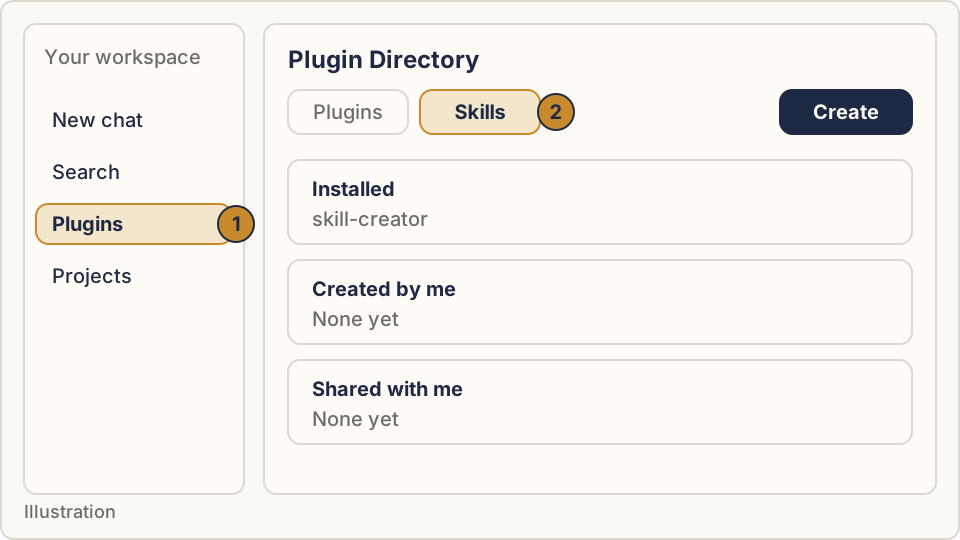
In ChatGPT, select Plugins in the sidebar. In the Plugin Directory, select the Skills tab. According to the help center, it shows Installed, Created by me, Shared with me and a shared-by-workspace group.
Step 2: Upload from your computer
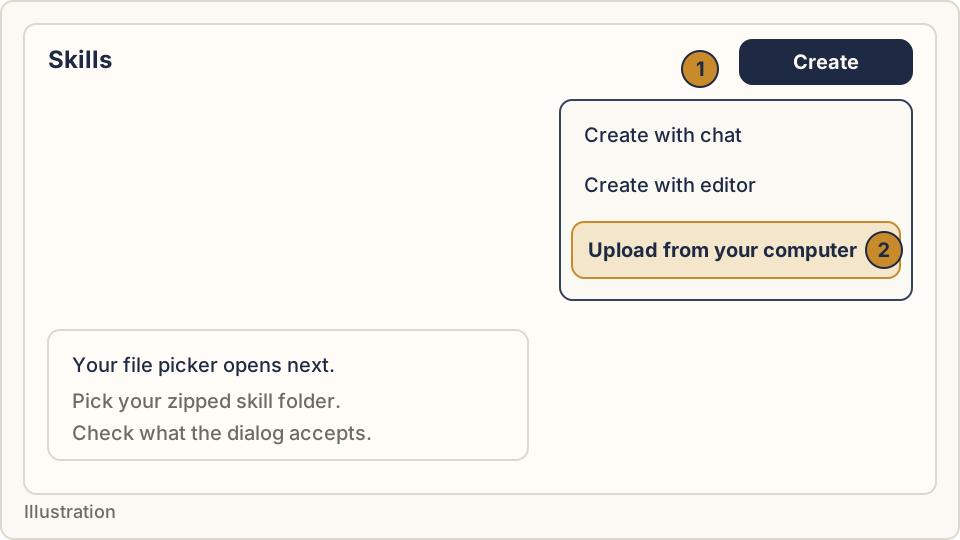
Select Create. The help center lists three ways to make a skill: Create with chat, Create with editor and Upload from your computer. Choose the last one and pick your zip file.
Step 3: Wait for the scan, then review
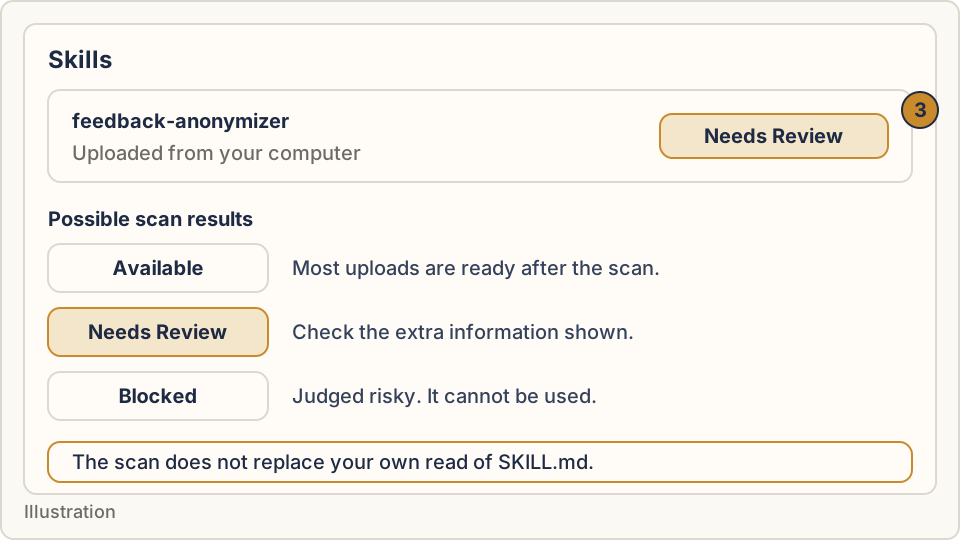
The help center says ChatGPT scans uploads before they are available. Most are ready straight after. Some are marked Needs Review and ask you to check more information. A skill that looks risky is marked Blocked and cannot be used.
Open SKILL.md in any text editor and read it yourself before your team uses it. OpenAI’s help article warns that skills can include instructions, supporting files and code, and says the scan is not a substitute for your review. Our guide to checking an AI skill gives a short checklist.
Step 4: Call the skill in a chat
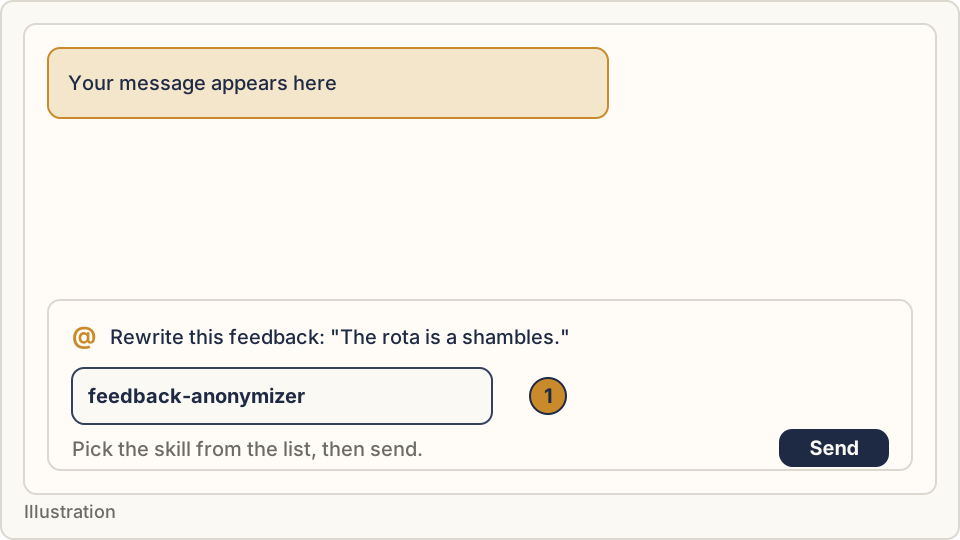
According to OpenAI’s build-skills page, you can name a skill explicitly by typing @ in ChatGPT. ChatGPT can also choose a skill itself when the task matches the skill’s description, and the help center says installed skills can be used automatically when helpful. Typing @ is the more predictable route, so use it while you are testing.
Check it worked
Start a new chat and use made-up text, never real feedback. Type @, pick the Feedback Anonymizer, then send:
Rewrite this survey answer: "tbh the Eastside rota is a SHAMBLES!!! Priya never replies to emails. Fix it asap."A good result follows the structure in the skill’s own instructions. You should see a short points list, a neutral rewrite with numbered markers, and a list of details that could still identify the writer, such as the office name and the colleague’s name. The skill says it should replace other people’s names with placeholders like [Name 1], keep the strength of the complaint, and end with a note that anonymity cannot be guaranteed. It limits each use to 5 answers or 500 words.
If the reply is a generic paraphrase with none of that structure, the skill probably did not run. Try again with @. We have not run this test on ChatGPT ourselves, so treat the expected result as the skill’s design, not a guarantee.
If it doesn’t work
- No Skills tab or no upload option. OpenAI says availability depends on plan and workspace settings. Ask your admin whether skills and skill uploading are enabled.
- Needs Review or Blocked. Read the information ChatGPT shows. A blocked skill cannot be used, so ask the author or your admin before trying again.
- The upload is refused. The help article does not state accepted formats. Check the message, and try the zip shape described in Step 1.
- No access at all: use a Project. OpenAI’s Projects page says you select New project in the sidebar, open the more options menu (•••), choose Project settings, and add instructions there. Add
SKILL.mdas a project file, then write one line of instructions such as “Follow the instructions in SKILL.md for every message here.” That wording is our suggestion, and OpenAI does not document it as a way to run skills. Project file limits are 5 for Free, 25 for Go and Plus, and 40 for Edu, Pro, Business and Enterprise.
Two routes do not fit. Custom instructions are capped at 1,500 characters on Free and Go and 5,000 on other plans, and SKILL.md is far longer. Custom GPTs are the other old route. OpenAI says new GPT creation is not available on personal accounts, and that standard retirement of custom GPTs is scheduled for December 11, 2026.
Keeping people’s data safe
The Feedback Anonymizer handles feedback that employees wrote about themselves, so treat a chat with it as sensitive.
- OpenAI says business plans are not used to train its models by default. For Free, Plus and Pro accounts, the data controls page says to turn off Improve the model for everyone under Settings and Data controls if you do not want your chats used.
- A Project shared with others can expose its files and instructions. The Projects page lists access levels of Edit and Chat.
- According to OpenAI, external services a skill uses may have their own storage and processing terms. Our example uses none, and you can confirm that by reading the file.
- Do not paste names or specific allegations when testing. Use invented text.
Where to go next
Browse the full library of HR skills, or read how to check an AI skill before your HR team uses it. We have matching guides for other assistants:
Ask your admin before uploading anything on a work account, and keep a note of which skill file version you installed.
Sources
- Skills in ChatGPT, OpenAI Help Center, checked 21 November 2026
- Build skills, OpenAI, checked 21 November 2026
- Skills, OpenAI API documentation, checked 21 November 2026
- Projects in ChatGPT, OpenAI Help Center, checked 21 November 2026
- GPTs in ChatGPT, OpenAI Help Center, checked 21 November 2026
- ChatGPT custom instructions, OpenAI Help Center, checked 21 November 2026
- Data controls FAQ, OpenAI Help Center, checked 21 November 2026