How to use AI HR Skills in Claude
Download a skill's SKILL.md file, put it in a folder, zip the folder, and upload it under Customize > Skills in Claude. This guide uses the Feedback Anonymizer.
AI HR Skills Editorial TeamTo use an AI HR Skills library skill in Claude, you download its SKILL.md file, put it in a folder with the same name as the skill, and zip that folder. Then you upload the zip under Customize > Skills and switch the skill on. Claude’s documentation confirms this route for skills you did not write yourself. Whether you can do it depends on your plan and, at work, on your admin’s settings.
This guide uses the Feedback Anonymizer, an open skill in our library. A skill is a folder of written instructions that Claude reads when your request matches what the skill is for. Each step below comes from Anthropic’s documentation, listed under Sources.
Key takeaways
- Claude takes skills as a zip file that contains the skill folder, not as a loose SKILL.md file.
- According to Anthropic, skills need code execution turned on, and Team and Enterprise owners can switch skills or user-created skills off.
- Anthropic says to use skills only from trusted sources and to review the files first, so read SKILL.md before you upload it.
- Test with made-up text. Skills are not covered by zero data retention arrangements, so real employee data needs your organization’s approval first.
What you need
A plan with skills. According to Claude’s Help Center, skills are available on Free, Pro, Max, Ultra, Team and Enterprise plans. Anthropic’s platform documentation is narrower about uploading your own: it lists Pro, Max, Ultra, Team and Enterprise. Check your own account.
Code execution switched on. On individual plans, the Help Center points to Settings > Capabilities and the “Code execution and file creation” setting. It says newer layouts call it “Create and edit files”. On Team and Enterprise plans, an owner sets this under Organization settings > Plugins & skills, on the Policy tab. The same page says owners can disable user-created skills. If you can’t upload, ask your admin.
The skill files. The Feedback Anonymizer’s page offers a download of SKILL.md. The folder in our library also holds a LICENSE file, which you can include or leave out. The skill needs no other files.
Step 1: Put SKILL.md in a folder named feedback-anonymizer
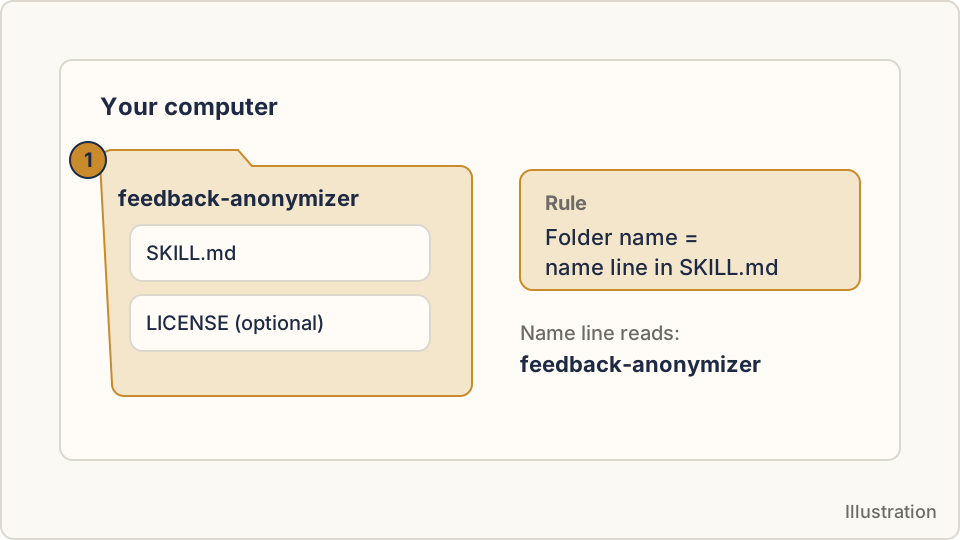
Make a new folder called feedback-anonymizer. Save the downloaded SKILL.md inside it. Claude’s documentation says the folder name must match the name line at the top of SKILL.md. In this skill, that line reads feedback-anonymizer.
Open SKILL.md in a text editor and read it before you go on. The first lines are the skill’s name and description. The rest is plain-English instructions.
Step 2: Zip the folder itself
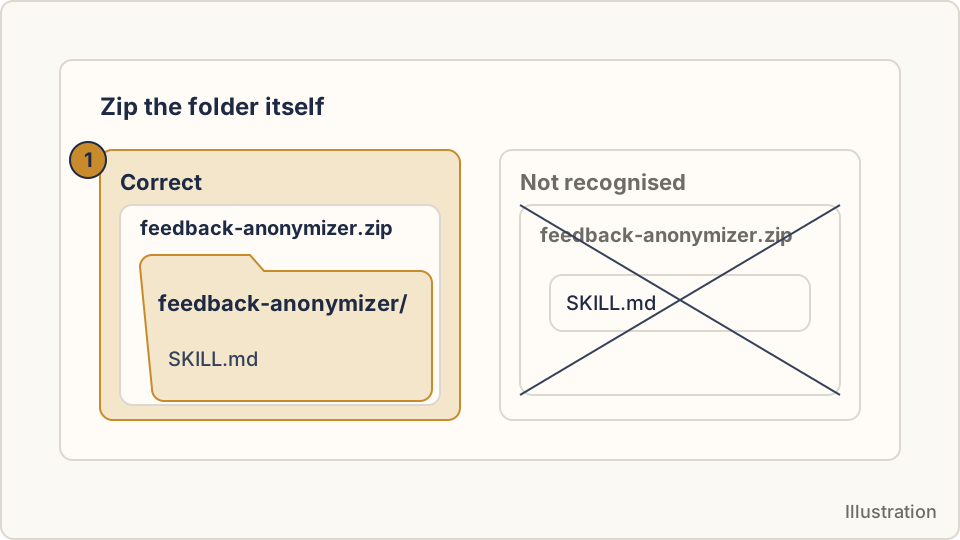
Compress the folder so that the folder, not just its contents, sits at the top of the zip. Anthropic’s documentation says Claude looks for <skill-name>/SKILL.md inside the archive, and that a SKILL.md sitting at the root of the zip isn’t recognized. If your tool offers a choice, compress the folder, not the files inside it.
You should end up with feedback-anonymizer.zip. Opened, it shows the folder first and SKILL.md inside it.
Step 3: Upload the zip
Open Claude on the web or in the desktop app. According to the Help Center:
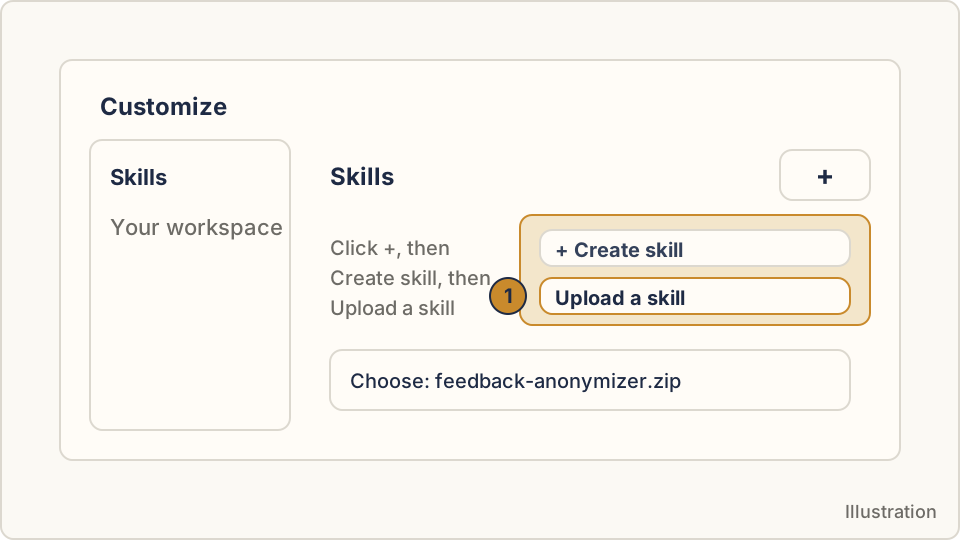
- Go to Customize > Skills.
- Click the + button, then + Create skill.
- Choose Upload a skill.
- Upload
feedback-anonymizer.zip.
The skill then appears in your skills list. Anthropic says uploaded skills are private to you until you share them. On Team and Enterprise plans, admins can see a skill’s name and sharing status, but not its contents.
Step 4: Switch the skill on
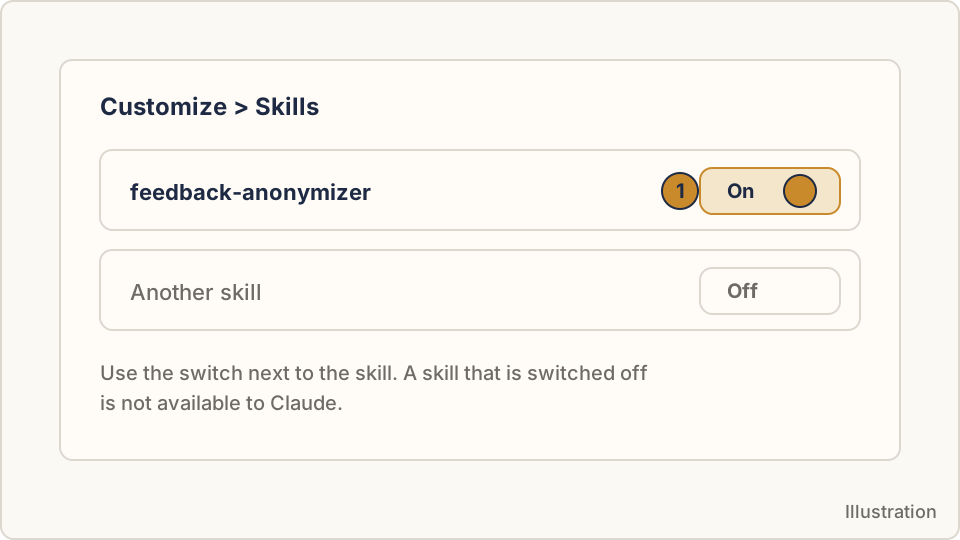
In the same list, use the switch next to the skill. The Help Center says a disabled skill is unavailable to Claude.
Check it worked
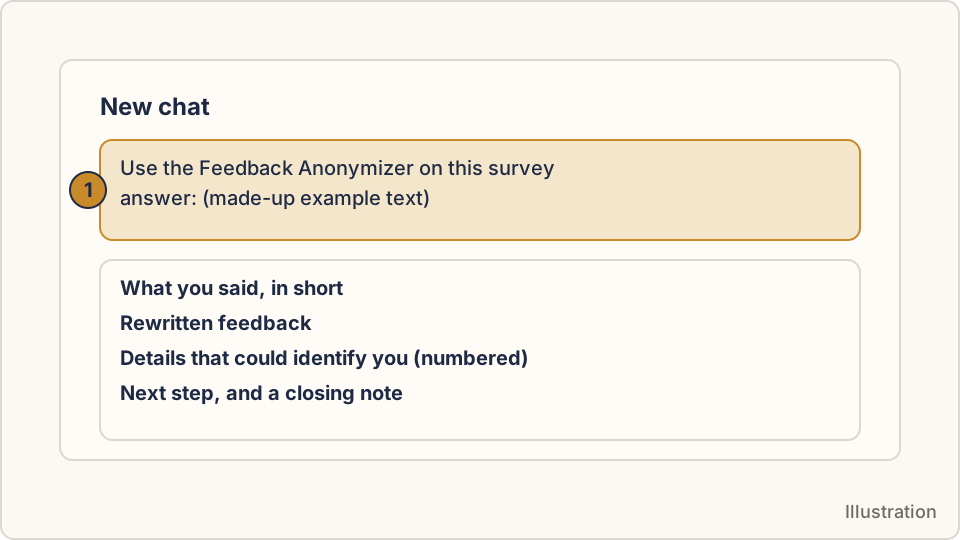
Open a new chat and paste this made-up example:
Use the Feedback Anonymizer on this survey answer: “I’m the only Spanish-speaking coordinator at the Eastside office, and I have asked Dana three times to stop booking our team meetings at 6pm. It is exhausting!!”
Anthropic suggests sending prompts that should trigger the skill, then reviewing Claude’s thinking to confirm the skill loads. Our skill’s instructions describe what comes back, in this order:
- A short list of the points you made.
- A rewrite in a neutral style.
- A numbered list of details that could identify the writer, here likely the role, the office and the name, each with keep, generalize and remove options.
- A closing note that this makes feedback harder to trace but can’t guarantee anonymity.
If you see those parts, the skill loaded. If Claude answers in its usual style, it didn’t.
If it doesn’t work
- No Skills section. The Help Center says to enable code execution first. On Team and Enterprise plans, an owner controls it.
- Upload rejected or no Upload option. Anthropic lists these causes: a zip over the size limit, a folder name that doesn’t match the skill name, a missing SKILL.md, or invalid characters in the name or description. On Team and Enterprise plans, owners can disable user-created skills.
- Description length. Anthropic’s pages disagree. The Help Center article on creating custom skills lists 200 characters for the description. Claude’s docs and platform documentation list 1,024. The Feedback Anonymizer’s description is about 390 characters. If an upload is refused and the name and zip are right, try a copy with a shorter description line.
- Claude doesn’t use it. The Help Center says to confirm the skill is toggled on, check that its description states when to use it, and be more explicit in your request, such as naming the skill.
Other ways to use a skill in Claude
Claude Code. Claude Code is Anthropic’s tool for working in a terminal. According to its documentation, a skill is a folder with a SKILL.md file, and personal skills go in ~/.claude/skills/<skill-name>/SKILL.md. You can run one by typing /skill-name. Anthropic says custom skills don’t sync across surfaces, so add the skill wherever you use it.
Projects. Anthropic’s Help Center says a project has instructions you set with “Set project instructions” and a knowledge area where you can add text files. You could paste a skill’s instructions there. We found no documentation that treats that as the same as a skill, and the page lists no file size limits, so treat it as a workaround and test it.
Keeping people’s data safe
Anthropic’s documentation warns that a skill can make Claude call tools in ways that don’t match its purpose. It advises using skills only from trusted sources and reviewing every bundled file. Our guide on how to check an AI skill covers that review.
For data, three points come from Anthropic’s own pages:
- Its platform documentation says Agent Skills isn’t covered by zero data retention arrangements.
- Its privacy center says commercial products, such as Claude for Work, don’t use your inputs and outputs for training by default, with exceptions such as feedback you submit.
- For Free, Pro and Max, it points to the Model Improvement setting under Privacy Settings, and says conversations flagged for safety review can still be used.
The Feedback Anonymizer is built for employees preparing their own feedback, and its instructions say what you paste is processed by the AI assistant you use. Before anyone puts real survey comments or case details into Claude, ask your admin or privacy lead what your organization allows.
Where to go next
Browse the skill library for more skills to try. Before adopting one, read how to check an AI skill. If your team uses other assistants, we have matching guides for ChatGPT and Microsoft Copilot.
Sources
All checked on 21 November 2026.
- Use skills in Claude, Claude Help Center, checked 21 November 2026
- How to create custom skills, Claude Help Center, checked 21 November 2026
- Create custom skills, Claude docs, checked 21 November 2026
- Agent Skills overview, Claude Platform Docs, checked 21 November 2026
- Extend Claude with skills, Claude Code Docs, checked 21 November 2026
- How can I create and manage projects, Claude Help Center, checked 21 November 2026
- Is my data used for model training, Anthropic Privacy Center (commercial), checked 21 November 2026
- Is my data used for model training, Anthropic Privacy Center (consumer), checked 21 November 2026